
Manage Cards
Stay connected to your cards wherever life takes you.
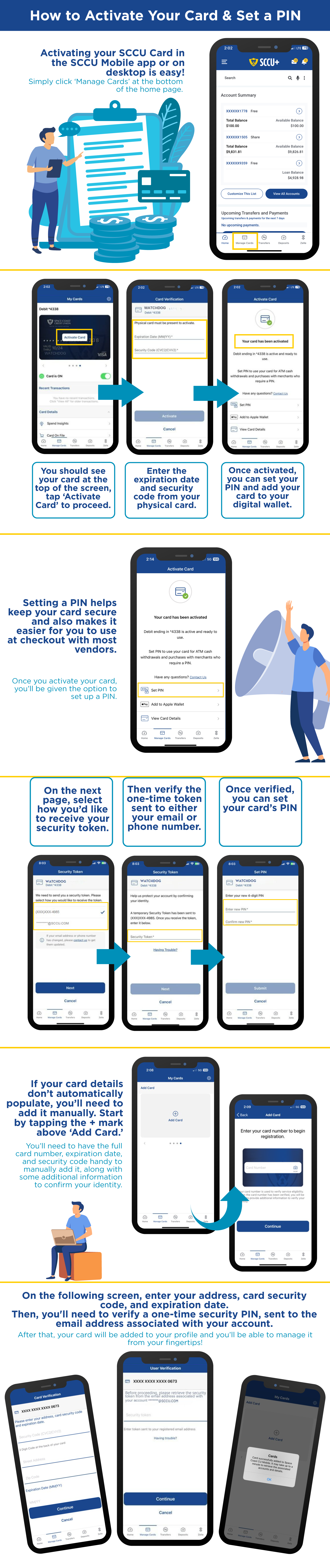
Manage your SCCU Visa® cards from Online or Mobile Banking. Activate cards, set alerts, manage controls, view transactions, and respond quickly to potential fraud—all in one place.
Get Started in 3 Steps
- Enroll in Online Banking if you haven't already.
- Download the SCCU Mobile app
- Select Manage Cards to access your card tools and controls
 |
 |



Explore What's Possible with Manage Cards
Card Activation & PIN Management: Activate eligible cards and manage your PIN without calling.
Digital Card Access: Access eligible new and replacement consumer cards before your physical card arrives in the mail.
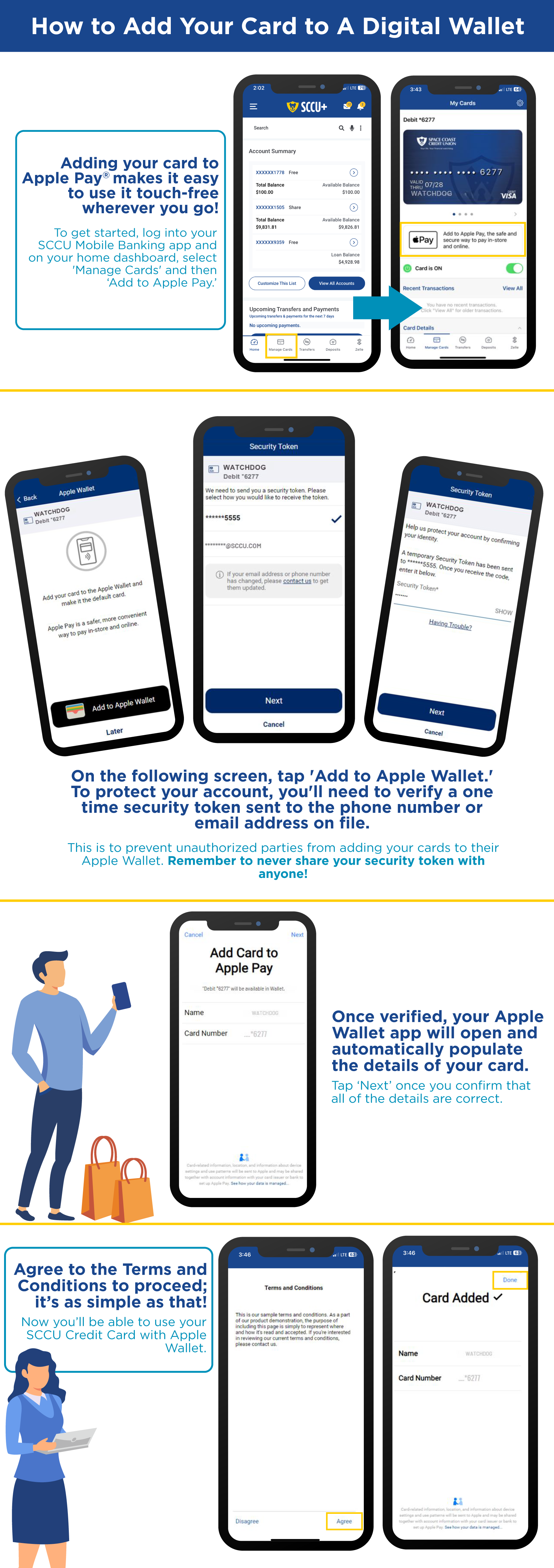
Digital Wallet Integration: Add eligible SCCU cards to Apple Pay®, Google Pay™, or Samsung Pay® for convenient purchases.
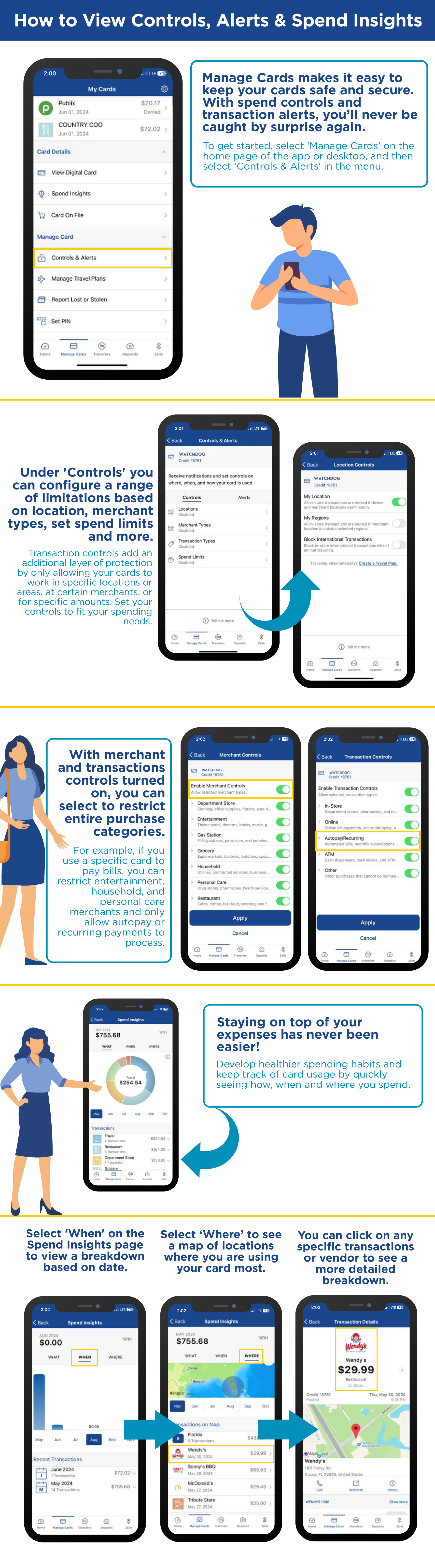
Transaction Alerts: Stay informed about card activity and purchases to help monitor spending and quickly identify unexpected transactions.
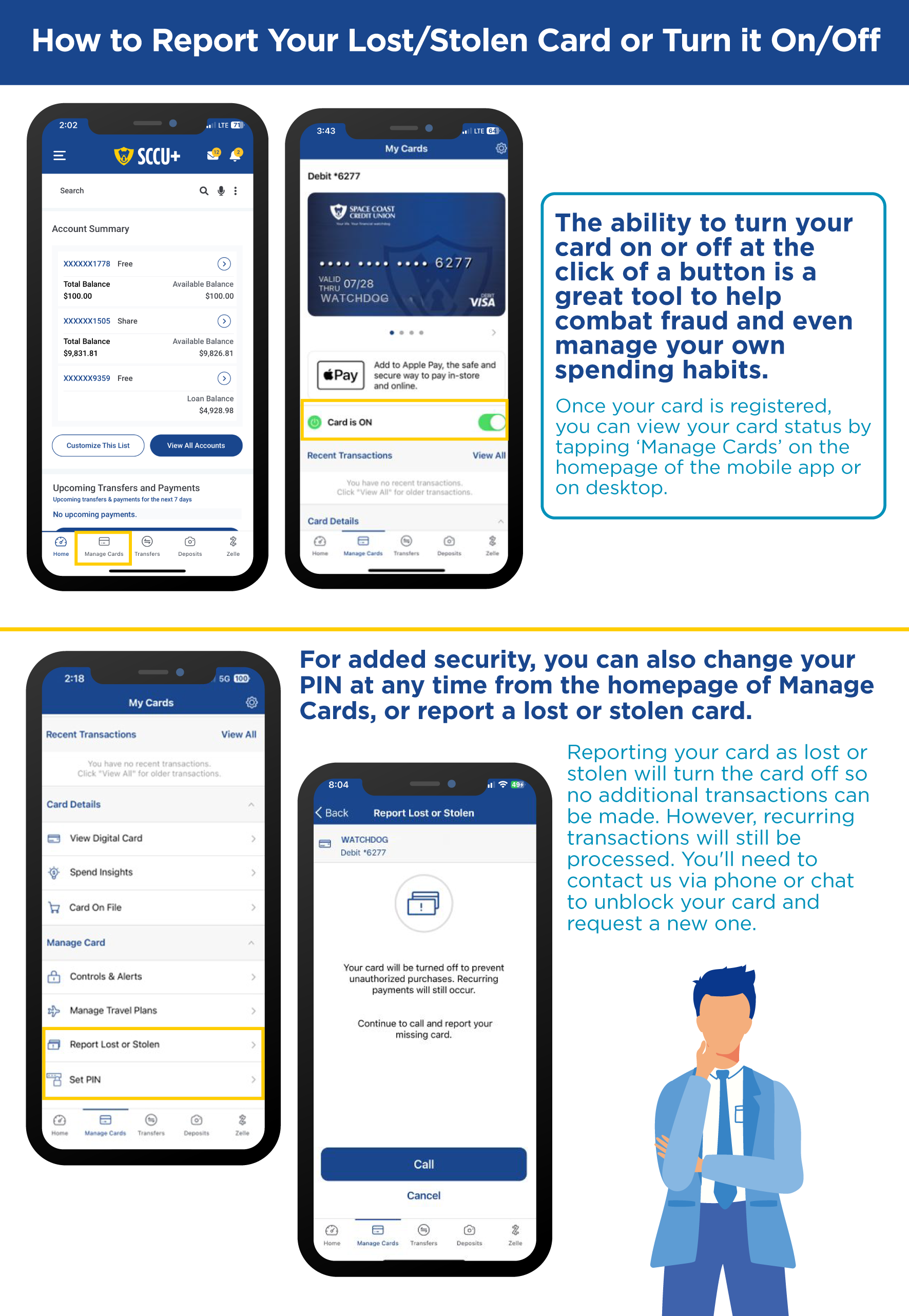
Fraud Alerts: Get real-time alerts about suspicious card activity, by push, text, and email, and quickly confirm or deny transactions right from Manage Cards. If the activity was yours, your card is ready to use again in seconds.
Card Controls: Manage spending settings, set controls, and temporarily turn your card on or off.
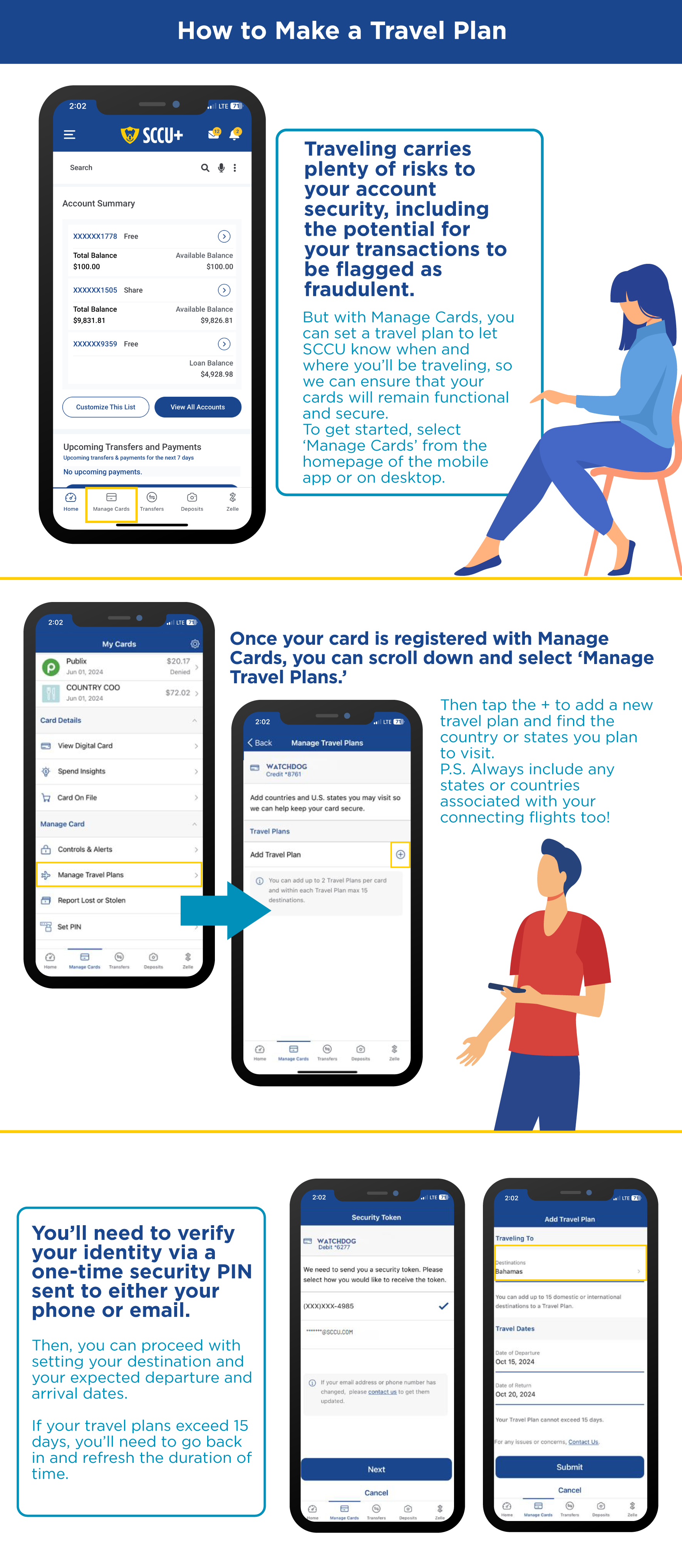
Travel Plans: Let SCCU know when you're traveling to help support uninterrupted card usage.
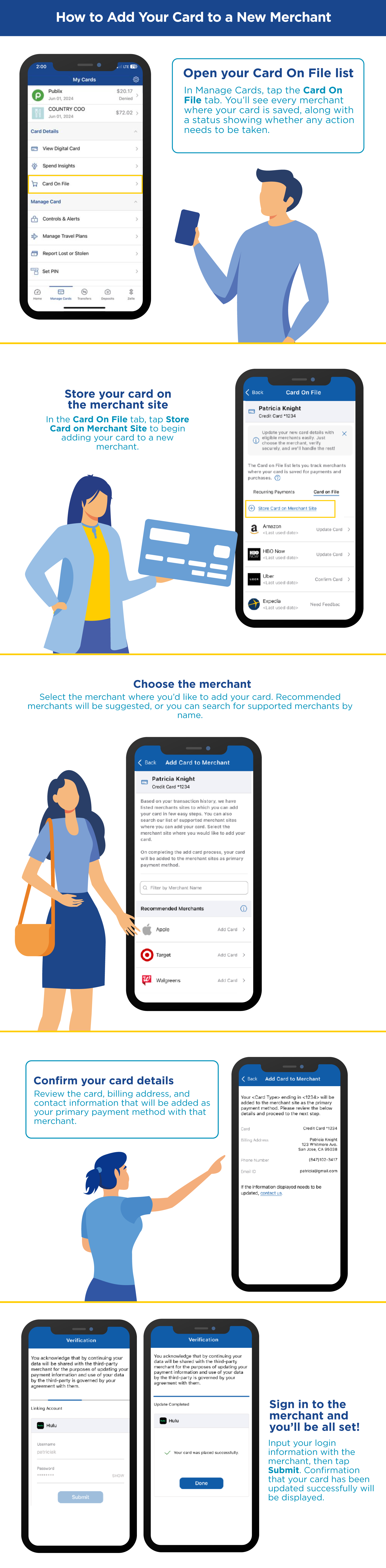
Card on File: Easily add or update your SCCU card with your favorite participating merchants, so your recurring payments and everyday purchases keep going without interruption.
.png)
.png)

Manage Cards FAQs
▸ What is Card on File and how does it work?
Card on File makes it easy to manage where you've saved your SCCU card for recurring payments, subscriptions, and everyday purchases. See participating merchants that have your card on file in one convenient place and update your card information when needed.
When you choose to add or update your card with a participating merchant, we'll verify your identity with a one-time security code before any changes are made.
Card on File helps you stay in control of your saved payment information and works alongside Visa Account Updater®, which may automatically update card information with participating merchants when your card is replaced or reissued.
▸ How do I add or update my card with a merchant?
In Manage Cards, select the Card on File tab to view participating merchants where your SCCU card may be saved.
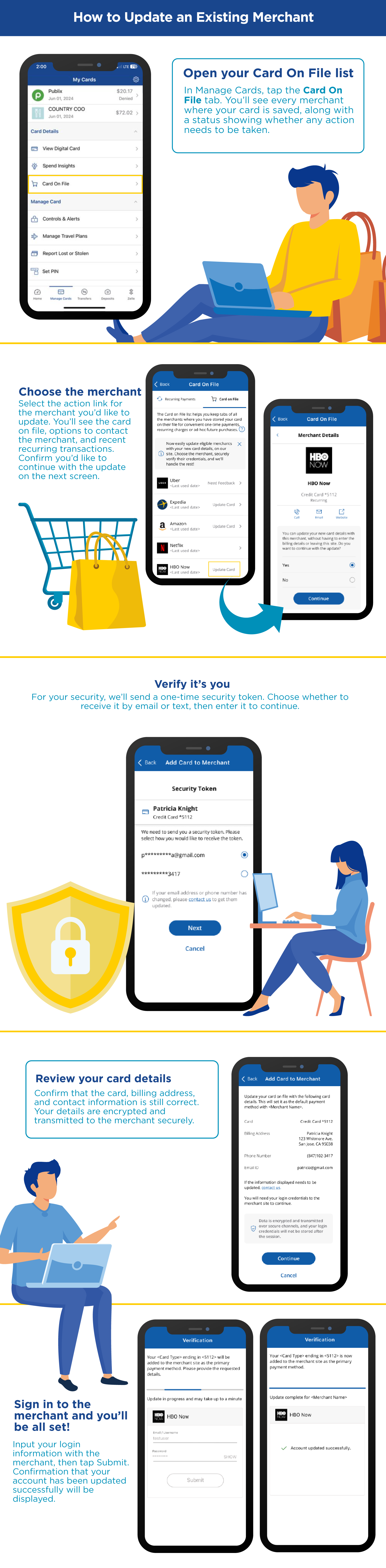
To update your card information with an existing merchant, simply select the merchant and follow the prompts. To add your SCCU card to a new participating merchant, select Add Card to Merchant and complete the guided steps.
For your protection, we'll verify your identity with a one-time security code before any updates are made. Some merchants may require you to sign in to complete the process. Your merchant login credentials are not stored by SCCU.
▸ Can I update my card with merchants and subscriptions?
Yes. Card on File allows you to easily update your SCCU card information with participating merchants where your card is already stored and add your card to new participating merchants.
This can help reduce interruptions to recurring payments and subscriptions when your card information changes. Card on File also works alongside Visa Account Updater®, which may automatically update card information with participating merchants after an eligible card replacement or reissue.
▸ How do Fraud Alerts work?
Manage Cards helps you stay informed about potentially suspicious card activity through eligible push notifications, text messages, and email alerts. If we detect activity that may be fraudulent, you can quickly review the transaction and indicate whether you recognize it.
Fraud alerts are designed to help you respond faster to potential fraud and keep your SCCU card available for the purchases you make every day.